How to Secure Your Remote Desktop Protocol (RDP) Against Ransomware: A 2026 Guide
Remote Desktop Protocol (RDP) is a double-edged sword for modern businesses. On one hand, it is the lifeline that allows IT administrators and remote employees to access work computers from anywhere in the world. On the other hand, it is arguably the single most popular entry point for ransomware attacks.
According to recent 2025 cybersecurity statistics, ransomware incidents have doubled over the last five years, with RDP compromises accounting for nearly 70% of all initial infection vectors. If you leave your RDP port (default 3389) open to the internet without protection, it is not a matter of if you will be attacked, but when.
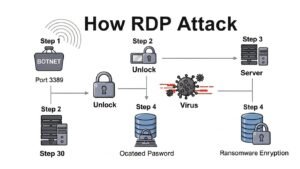
Hackers use automated bots to scan the entire internet for open RDP ports millions of times a day. Once they find one, they use brute-force attacks to guess passwords, gain administrative control, and deploy ransomware that locks your entire network.
The good news is that securing RDP is not expensive. In fact, most of the practical steps are free configuration changes. This guide will walk you through the essential steps to harden your RDP against ransomware in 2026.
Step 1: Stop Exposing RDP to the Internet
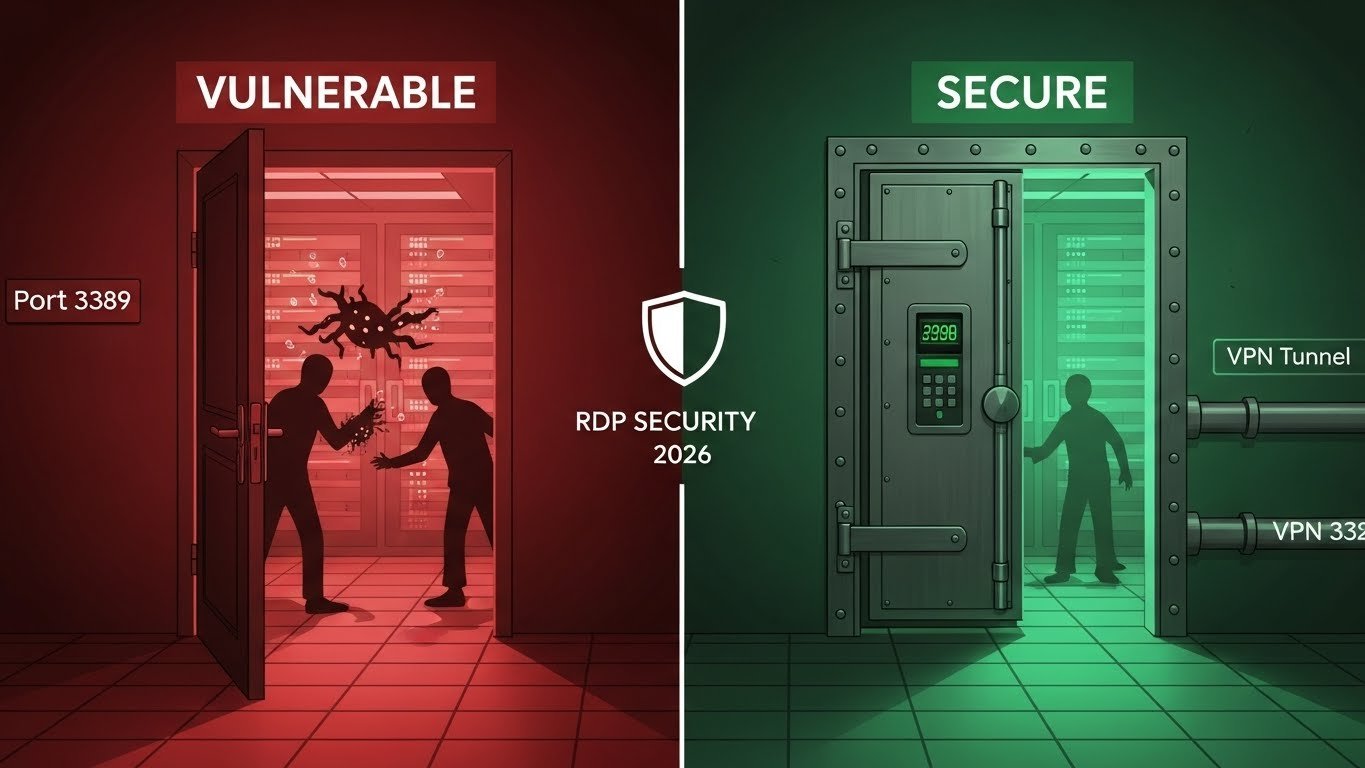
The golden rule of RDP security is simple: Never open port 3389 directly to the internet.
Many small business owners forward port 3389 on their router to their office PC so they can work from home. This is dangerous. It exposes the login screen of your computer to every hacker on the planet.
The Solution: Use a VPN (Virtual Private Network)
Instead of exposing RDP, set up a VPN. When you want to access your office computer:
- Connect to your company VPN first.
- This places your home computer “virtually” inside the office network.
- Now, you can RDP into your office PC using its internal IP address (e.g., 192.168.1.50).
Because RDP traffic travels through an encrypted VPN tunnel, hackers scanning the public internet cannot see your RDP port. It is effectively invisible.
Step 2: Enable Network Level Authentication (NLA)
If you must use RDP without a VPN (which is not recommended), or even if you use a VPN, you must enable Network Level Authentication (NLA).
Without NLA, the RDP server (your computer) creates a session before checking the user’s password. This consumes resources and allows attackers to exploit vulnerabilities in the login screen itself.
With NLA enabled, the user must authenticate before the session is created. This acts as a gatekeeper, rejecting unauthenticated traffic instantly.
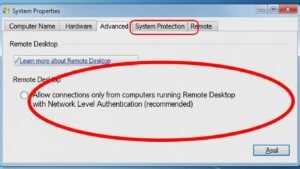
How to check if NLA is enabled:
- Go to System Properties > Remote.
- Look for the checkbox: “Allow connections only from computers running Remote Desktop with Network Level Authentication.”
- Ensure this box is checked.
Step 3: Enforce Multi-Factor Authentication (MFA)
In 2026, a password alone is no longer sufficient security. Passwords can be guessed, stolen, or bought on the dark web.
Multi-Factor Authentication (MFA) ensures that even if a hacker has your password, they cannot log in without your phone. Tools like Duo Security or Microsoft Authenticator can be integrated with RDP.
When you try to log in via RDP:
- You enter your password.
- Your phone buzzes with a notification: “Approve sign-in?”
- You tap “Approve.”
If a hacker in another country guesses your password, they will be stuck at step 2, and you will receive an alert that someone is trying to access your account. This is one of the most effective defenses against ransomware.
Step 4: Implement Account Lockout Policies
Hackers don’t guess the password once; they think it thousands of times per minute using “brute-force” tools. If you don’t limit the number of attempts, they will eventually succeed.
You can stop this by configuring an Account Lockout Policy in Windows Group Policy.
Recommended Settings:
- Account lockout threshold: 5 invalid logon attempts. (After 5 wrong guesses, the account locks).
- Account lockout duration: 15 minutes. (The hacker must wait 15 minutes before trying again.
This slows down the attack so significantly that most bots will give up and move on to an easier target.
Step 5: Change the Default Port (Obscurity)
By default, RDP listens on port 3389. While “security by obscurity” is not a complete solution, changing this port to a non-standard number (like 48291) can reduce the amount of automated background noise and bot scans you receive.
Warning: This requires editing the Windows Registry.
- Open regedit and navigate to: HKEY_LOCAL_MACHINE\System\CurrentControlSet\Control\Terminal Server\WinStations\RDP-Tcp.
- Find the “PortNumber” subkey and change it to your desired port.
- Remember to update your firewall to allow traffic on the new port.
Note: Sophisticated scanners can still find open ports, so do not rely on this as your only defense. It is merely an extra layer.

Step 6: Restrict Access to Specific IP Addresses
If your employees only work from a static location (such as a branch office or a home with a static IP), you should configure your firewall to accept RDP connections only from those specific IP addresses.
For example, in the Windows Defender Firewall or your hardware firewall, create a rule:
- Action: Allow
- Protocol: TCP / 3389
- Source IP: [Your Office Static IP]
- Destination: Any
This means that even if a hacker has your password and the correct port, the firewall will drop their connection immediately because their IP address does not match the “Allow” list.
Step 7: Keep Your Systems Patched
Ransomware gangs love “Zero-Day” exploits—vulnerabilities in software that the vendor hasn’t fixed yet. However, they also love “Old-Day” exploits—vulnerabilities that were fixed years ago but that you haven’t patched.
The famous BlueKeep vulnerability allowed hackers to take over computers via RDP without even needing a password. Microsoft released a patch for this years ago, yet thousands of servers remain unpatched and vulnerable.
Set your Windows Servers to update automatically, or use a Patch Management tool to ensure that every machine running RDP has the latest security fixes installed within 24 hours of release.
Conclusion
Securing RDP against ransomware does not require a million-dollar budget. It requires discipline and configuration.
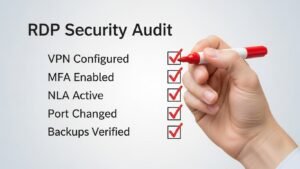
By moving RDP behind a VPN, enabling NLA, enforcing MFA, and blocking brute-force attacks, you can eliminate nearly 99% of the risk associated with remote access.
Don’t wait until you see the dreaded “Your Files Are Encrypted” screen. Take an hour today to audit your RDP settings and close the door on cybercriminals.